.png)

Updated: February 2026
Is your employer taking screenshots of your screen every few minutes? Are you constantly paranoid about what might get captured next?
You're not alone.
Screenshot monitoring has become one of the most invasive forms of employee surveillance. Unlike activity tracking (which just measures keystrokes and mouse movements), screenshot monitoring literally captures what's on your screen—your emails, your personal messages, your banking info.
In this guide, you'll learn:
- How screenshot monitoring works
- Which software uses it
- How to disable or bypass it
- Legal considerations you need to know
Let's get started.
What Is Screenshot Monitoring?
Screenshot monitoring is a feature in employee surveillance software that periodically captures images of your computer screen. Employers use these screenshots to verify you're actually working—not browsing social media or streaming videos.
How Often Do They Capture Screenshots?
SoftwareDefault IntervalCustomizableHubstaffEvery 10 minutesYes (1-30 min)Time DoctorEvery 10 minutesYesInsightfulEvery 3 minutesYesWorkpulsEvery 10 minutesYesActivTrakEvery 15 minutesYes
Some employers set intervals as short as 1-3 minutes, meaning they're essentially recording your entire workday.
Why Employers Use Screenshot Monitoring
Before we discuss bypassing it, let's understand why employers use this:
- Verify productivity – They want visual proof you're working
- Compliance requirements – Some industries require activity logs
- Trust issues – They don't believe in remote work culture
- Client demands – Clients may require activity documentation
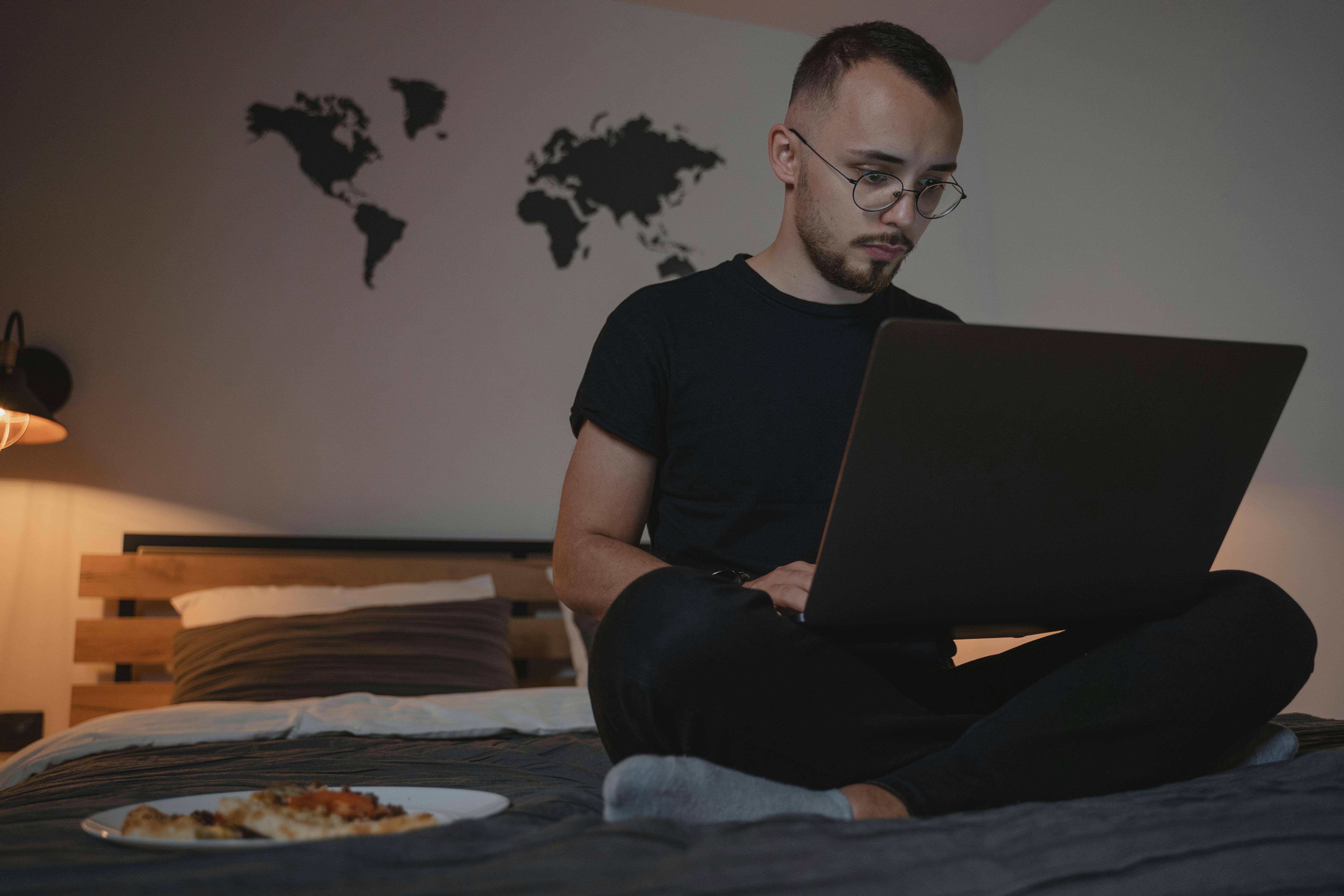
How to Bypass Screenshot Monitoring
Here's what you came for—how to actually deal with screenshot monitoring.
Method 1: Use a Screen Overlay (Recommended)
The most effective method is using a screen overlay that shows a fake workspace when screenshots are captured.
How it works:
- The overlay runs in the background
- When a screenshot is about to be taken, it quickly displays a "work" screen
- After the capture, it returns to your actual screen
[Image: Screenshot showing overlay in action - alt: "Screen overlay example"
Tools that help:
- LazyWork (includes screen overlay feature)
- Custom browser extensions
Method 2: Use a Virtual Machine
A virtual machine (VM) creates a separate computer within your computer. You can run your "work" environment in the VM while doing personal tasks on your main screen.
Popular VM software:
- VirtualBox (free)
- VMware Workstation (paid)
- Parallels (Mac)
[Image: Virtual machine setup diagram - alt: "Virtual machine for screenshot bypass"
Method 3: Disable Screenshot Permissions
Some monitoring software requires screen recording permissions. You may be able to revoke these:
On Mac:
- Go to System Settings → Privacy & Security → Screen Recording
- Find the monitoring software
- Toggle it OFF
On Windows:
- Go to Settings → Privacy & Security → Camera
- Check which apps have access
- Revoke access for monitoring software
[Image: Step-by-step screenshots for disabling permissions - alt: "How to disable screen recording permissions"
Method 4: Use a Second Monitor Trick
If you're monitored on one screen but not others:
- Keep your "work" on the monitored screen
- Do personal tasks on a second monitor (if you have one)
- The screenshot will only capture the monitored display
Which Software Captures Screenshots?
Here's a breakdown of popular time tracking software and their screenshot features:
SoftwareScreenshot FeatureCan Be Disabled?Hubstaff✅ YesAdmin onlyTime Doctor✅ YesAdmin onlyClockify❌ NoN/ADesktime✅ YesAdmin onlyInsightful✅ YesAdmin onlyActivTrak✅ YesAdmin onlyToggl Track❌ NoN/A
Note: In most cases, regular employees cannot disable screenshot monitoring themselves—only administrators can. That's why the bypass methods above are useful.
What Shows Up in Screenshots?
Your employer sees:
- ✅ Open browser tabs
- ✅ Email content
- ✅ Chat messages
- ✅ Documents you're editing
- ✅ Passwords (if visible)
- ✅ Personal information
- ✅ Anything on your screen at capture time

Legal Considerations
Before using any bypass methods, consider the legal implications:
Things to Know:
- Employee agreements – You likely signed something allowing monitoring
- Company policy – Bypassing surveillance may violate policies
- Termination risk – You could be fired if caught
- Local laws – Some regions have stricter privacy laws
Where Monitoring Is Restricted:
RegionRestrictionsEU (GDPR)Employees must be informed; monitoring limitedCaliforniaWritten consent requiredCanadaReasonable expectation of privacyGermanyStrict limitations on employee monitoring
Best Practices If You're Monitored
If you can't bypass screenshot monitoring, here are survival tips:
✅ Do:
- Keep personal browsing to a minimum during work hours
- Use private/incognito mode for personal searches
- Close sensitive apps before screenshot intervals
- Log personal activities on your phone instead
❌ Don't:
- Access company systems with personal accounts
- Store passwords in plain text
- Say anything about bypassing monitoring in writing
- Use company devices for personal business
Frequently Asked Questions
Can I tell if screenshots are being taken?
Sometimes. Some apps show a notification icon when capturing. You can also check:
- Task Manager (Windows) → Performance → Resource Monitor
- Activity Monitor (Mac) → Screen Recording indicator (green dot)
Does VPN hide my activity from screenshots?
No. Screenshots capture what's on your screen locally—they don't travel through the internet. A VPN won't help.
Can my employer see my personal computer?
Only if:
- They installed monitoring software on it
- You're using a company-provided device
- You're using a virtual machine they control
Will I get fired for bypassing screenshot monitoring?
Possibly. It depends on:
- Company policies you signed
- How you bypassed it
- Your company's stance on monitoring
Conclusion
Screenshot monitoring is intrusive, stressful, and often unnecessary. While you have limited options for stopping it officially (since only admins can disable it), the bypass methods above can help protect your privacy.
Key takeaways:
- Most screenshot monitoring can't be disabled by employees — only admins can turn it off
- Screen overlays are the most effective bypass — they show fake "work" during captures
- Virtual machines provide separation — keeps personal activity off captured screens
- Know the legal risks — bypass methods could violate company policies
Remember: these tools protect your privacy, but they don't replace actual work. Use them wisely.
Need help with other time tracking bypass methods? Check out our guides for Hubstaff, Time Doctor, Clockify, and more.

Have questions about specific screenshot monitoring software? Leave a comment below.